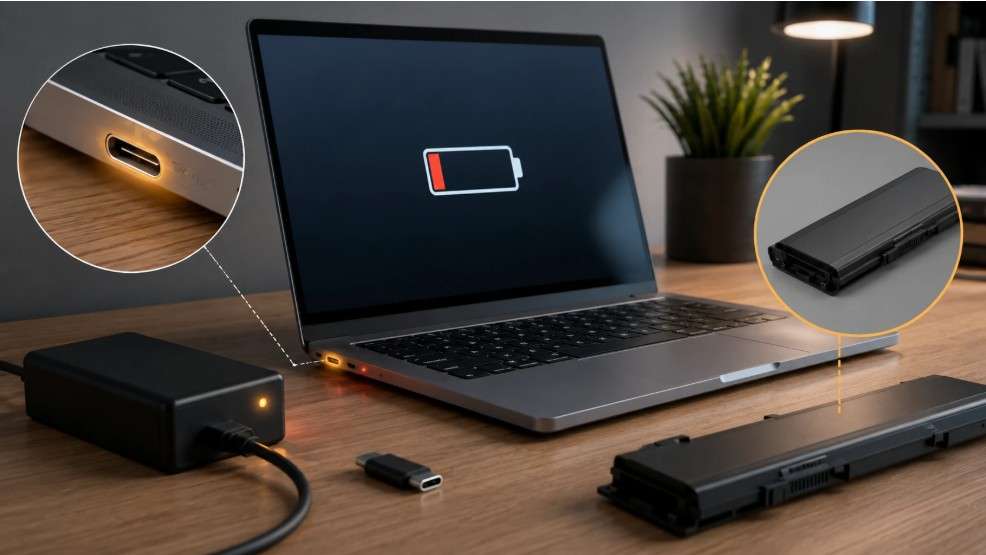
If your laptop suddenly won’t charge, there will usually be some tell-tale signs that point towards what’s causing it. I’ve spent the last several years troubleshooting laptop charging issues in a repair shop. Based on this experience, I’ve learned that in the majority of cases, the culprit is one of three things: battery, charger/cable or charging port. However, each of the three has unique signs. So, it is important to know exactly what each sign indicates in order to know which one to replace, the battery or the charger cable/charger. Because if you choose the charger or adapter when really, you just needed a new battery ($20) or if you replace the battery when really it was the cable that was damaged?
In this post we’ll explore a logical, step-by-step process for telling them apart by the nature of the failure.
The 60-Second Diagnostic Test
Before you swap out anything, do a quick check first:
- Plug the charger into a wall outlet you know works, then connect it to the laptop.
- Watch the LED indicator on the laptop or charger – no light at all usually means power isn’t reaching the device.
- Try a different cable or charger (even from a different laptop, if it shares the same voltage and connector type).
- Try a different USB-C port if your laptop has more than one charging-capable port.
- Gently wiggle the connector while it’s plugged in. If charging starts or stops with movement, the port itself is likely loose.
If changing out the charger corrects the problem then you have a charger problem, and if changing out the port then you have a port problem. If neither works then a battery or even an internal fault is more likely.
Battery Problems
A battery usually doesn’t just fail and stop working all in one go. There are tell-tale signs:
- The laptop charges only while plugged in but dies the instant the cable is removed, even with the battery showing 50-100%.
- The battery percentage jumps unpredictably (90% one minute, 40% the next).
- The laptop runs fine on AC power with the battery removed (on models with a removable battery) – this strongly points to the battery itself.
- Windows or macOS shows a “plugged in, not charging” message even though power is clearly flowing.
- The case feels warm or slightly swollen near the battery compartment – a real safety concern, not just a performance issue.
After 300-500 cycles, your lithium-ion battery’s capacity degrades, which could mean your battery will have an average lifespan of 2-4 years for those who charge every day. Using your device in a place that gets hotter than usual may reduce this time even faster. Laptops that are frequently used on surfaces like a bed, pillow or lap will heat up more than laptops used on a non-heated desk and will consequently degrade sooner.
So, if the problem is indeed a battery issue, a replacement is typically the only viable solution. In practice, this is where users usually compare https://zeto.ua/ : the first option is more useful when you need to match an exact battery code, voltage and connector type, while the second is more familiar for broad brand-based browsing. The battery will not return its lost capacity, regardless of driver re-installation and calibration tweaks, although these methods can work when a battery is simply reporting 0% when it is not actually depleted
Charger and Cable Problems
More frequently than you’d expect, chargers and cables break from everyday use:
- The cable is visibly frayed, kinked, or bent sharply near either connector.
- Charging only works at a specific angle or when the cable is held a certain way.
- The charger’s brick feels unusually hot, or you hear a faint clicking or buzzing sound.
- A laptop charges slowly with one cable but normally with another of the same wattage.
- The charger works on a different laptop, but not on yours – or your laptop charges fine from a friend’s identical charger.
With USB-C, however, it’s not always so straightforward as USB-C doesn’t always mean it’s capable of laptop-level charging; it depends on the cable that’s being used, and it won’t necessarily be able to supply sufficient power, as not all cables are equal in design, some are built for charging smaller devices like mobile phones but are not able to handle the power levels required for laptop-level charging. When you are plugging your laptop in using the USB-C charger and cable, always check if both the charger and cable are capable of delivering sufficient wattage close to what your laptop charger supplied (often indicated on the underside of the charger or in the user manual), as a laptop that’s capable of taking a 65W supply, when connected to a USB-C power bank/charger that only outputs 18W may appear to not be charging simply due to the fact that the laptop draws more power than what is being supplied, especially when the battery capacity is being drained to power the machine.
USB-C Port Problems
The port itself rarely fails but costs the most in damages:
- Charging stops the moment the laptop is moved, bumped, or the cable is touched.
- The connector feels loose, wobbly, or doesn’t click in with the same firmness as other USB-C ports on the same machine.
- You notice bent pins, lint, dust, or a slightly discolored (often brown or black) area inside the port when checked with a flashlight.
- A known-good charger and cable work in every other port, but not this one.
- The laptop charges intermittently – flickering between charging and not charging on its own.
USB-C ports get abused. The plug is tiny and gets plugged in every day. It’s not uncommon for it to be inserted at an angle, which stresses the port’s contacts. But one often forgotten culprit for a USB-C port that seems to have stopped working is dust, pocket lint, or the like. A blast of compressed air is a cheap, fast fix to try before assuming a hardware problem. But if you know there isn’t any debris clogging up the port, you should assume a hardware failure. Most USB-C ports are soldered directly to the mainboard, with only a few exceptions where they’re soldered onto a removable daughterboard.
Software and Drivers
Prior to suspecting hardware issues, eliminate the possibility of a software malfunction. Although it may seem counterintuitive for a charging issue, a faulty battery driver may cause a well-functioning laptop to state that it is “not charging”, or show the wrong percentage.
- On Windows, open Device Manager, expand “Batteries,” right-click each entry (often “Microsoft ACPI-Compliant Control Method Battery”) and choose Uninstall, then restart – Windows will reinstall the driver automatically.
- Check for pending BIOS/UEFI and chipset updates, since some manufacturers release fixes specifically for USB-C charging negotiation bugs.
- Review power management settings – some systems have a battery-care or “conservation mode” feature that intentionally caps charging at 60-80% to extend battery lifespan, which can look like a fault if you don’t know it’s there.
- On macOS, resetting the System Management Controller (SMC) on Intel-based MacBooks, or simply checking Battery settings on Apple Silicon models, resolves a surprising number of “won’t charge” reports.
This is a free step that shouldn’t take more than a few minutes, but it does the job more often than you might think, in particular for laptops that started acting weird after a recent update.
A Logical Troubleshooting Order
Make sure that you follow these steps in order to make sure that you don’t end up replacing the incorrect part:
- Rule out software first (driver reinstall, BIOS update, power settings) – it’s free and fast.
- Test with a different, known-compatible charger and cable.
- Test with a different USB-C port on the same laptop, if available.
- If the laptop has a removable battery, test running on AC power alone.
- Only after all of the above, consider the battery or port as the likely hardware fault.
Every step helps eliminate an option before you spend a penny. It’s the difference between choosing between a $15 cable, a $40-80 charger, or battery or port repair, which is probably more expensive than either.
When to Repair, and When It’s Time to Replace the Laptop
Purchasing a fresh charger or cable is almost invariably a sound choice and a minimal cost for reassurance. Likewise, swapping the battery is usually a worthwhile investment; once you’ve swapped it out, most laptops feel considerably better. This remains true even for aging machines, as batteries are typically easy to obtain.
A broken USB-C port is a harder decision. The port is soldered into the motherboard, so you’d need a micro-soldering expert rather than an off-the-shelf replacement, which could cost a sizable chunk of the price of a fresh machine. In an older or more dated laptop, you might just do better to put your funds into an upgrade, especially if other areas have started to fail as well.
Frequently Asked Questions
Why does my laptop charge when I hold the cable at an angle? That’s almost certainly because the cable is only touching properly at a specific angle, which puts uneven pressure on the port and is very likely to make the problem progressively worse.
Will a laptop charger drain or hurt the battery? In general, the short answer is no, not if your laptop’s power management is designed to handle the extra watts (which it almost always is). Laptops today have the ability to negotiate exactly how much power it will ask for; the more wattage of the external power brick, the more options are available to negotiate for more power. However, if it’s an underpowered charger, the laptop is forced to use more than its usual maximum capacity; if used over a significant time, the battery could be harmed.
Is it OK to charge a laptop on a USB port with slow speed? That’s okay if your adapter or cable isn’t powerful enough to deliver all of the power that the laptop needs, but once your battery is 80% or so, all modern laptops will slow down their charge in an effort to help your battery life in the long run.
Is it okay to keep my laptop plugged in at all times? For contemporary laptops with integrated power management, this is perfectly acceptable, and won’t cause any problems. Constantly keeping the battery full (100%) in hot surroundings, however, can degrade the battery’s capacity more quickly. If yours has a charge limiting or battery care option, using this could be a good solution.
If you still can’t charge your laptop after following all these steps, it’s probably an internal issue within the charging circuit or motherboard that needs a professional’s attention. Don’t try anything beyond this or you could make the situation even worse.