Since its launch in 2016, Facebook Live has transformed how people share real-time experiences online. From live concerts and breaking news to webinars, gaming sessions, and personal updates, Facebook Live allows users to broadcast directly to friends, followers, or the public. Its immediacy and authenticity make it one of the most engaging features on Facebook.
However, live videos are often fleeting. While many remain available as replays, some are deleted, restricted, or difficult to find later. That’s why so many users look for ways to download Facebook Live video content to their phones or PCs.
People want to save live videos for many reasons:
- Rewatching important events or tutorials
- Preserving memorable personal broadcasts
- Repuposing content for marketing or editing
- Offline viewing without internet access
- Archiving business webinars or educational sessions
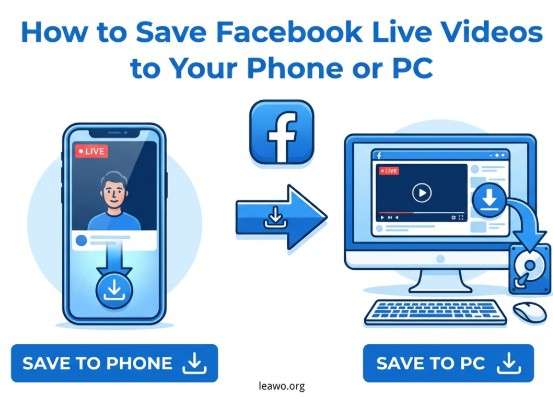
If you’ve ever wondered how to download Facebook Live video files safely and efficiently, this guide covers everything you need to know.
Can You Save Facebook Live Videos?
Quick Answer: Yes — But It Depends
You can save Facebook Live videos, but the method depends on:
- Whether the video is your own or someone else’s
- Your device (phone or PC)
- Privacy settings
- Copyright permissions
Facebook’s Built-in Download Features
If the video is your own live broadcast, Facebook makes it relatively easy to download it directly from your account. After the live session ends, it is automatically saved to your profile, page, or group (depending on where you streamed).
However, if you want to save someone else’s live video, Facebook does not offer a built-in download button. In that case, you’ll need third-party tools or screen recording software.
Legal Considerations
Before saving any live video that isn’t yours, remember:
- Downloading copyrighted material without permission may violate copyright laws.
- Always get permission from the content creator if you plan to reuse the video.
- Use downloaded videos for personal purposes unless you have explicit rights.
Being mindful of these legal aspects ensures you stay safe while learning how to download a Facebook Live video properly.
Method 1: Download Your Own Facebook Live Videos
If you’re the original broadcaster, this is the easiest method.
On Desktop (PC or Mac)
- Log into your Facebook account.
- Go to your Profile or Page.
- Click on the Videos tab.
- Locate your completed Live video.
- Open the video.
- Click the three dots (⋯) menu.
- Select Download Video.
The file will download in MP4 format to your computer.
On Mobile (iPhone or Android)
- Open the Facebook app.
- Go to your profile or page.
- Tap Videos.
- Select your Live replay.
- Tap the three dots.
- Choose Save to phone (if available).
If the option does not appear, you may need to download it from the desktop version instead.
Bonus Tip: Download During Live Broadcast
Facebook also gives streamers the option to automatically save live videos to their device after broadcasting. You can enable this in your Live settings before going live.
This method is best for content creators who want high-quality original files without relying on external tools.
Method 2: Save Someone Else’s Facebook Live Videos Using Online Downloaders
If you’re trying to download someone else’s public live video, online downloaders are one solution.
How Online Downloaders Work
Online downloaders function by:
- Copying the public video URL.
- Pasting it into a website.
- The site processes the link.
- You download the generated video file.
They don’t require software installation, which makes them convenient.
Popular Online Downloaders
Some commonly used online tools include:
- FDownloader
- Publr
- Getfvid
Each supports downloading public Facebook videos, including live replays.
Example: Using FDownloader
Here’s a quick guide:
- Open Facebook and find the Live video replay.
- Click Share → Copy Link.
- Visit FDownloader’s website.
- Paste the link into the download field.
- Click Download.
- Choose video quality (HD or SD).
- Save the file to your device.
Supported Platforms
Most online downloaders work on:
- Windows
- macOS
- Android
- iOS (via browser)
Pros and Cons
Pros:
- No installation required
- Quick and easy
- Free options available
Cons:
- Limited quality control
- Ads and pop-ups
- May not work with private videos
If you’re looking for a fast way to download Facebook live video content without installing software, online downloaders can be useful — but they aren’t always reliable.
Method 3: Save Someone Else’s Facebook Live Videos Using Screen Recording
If downloaders fail or the video is private, screen recording is another powerful method.
Why Screen Recording Works
Instead of downloading the video file directly, screen recording captures whatever plays on your screen in real time. This works even if:
- The video is private (if you have viewing access)
- Download buttons are disabled
- Online downloaders fail
Built-in Screen Recorders
Windows: Xbox Game Bar (Win + G)
Mac: QuickTime Player
iPhone: Built-in Screen Recording
Android: Built-in Screen Recorder
Using CleverGet Recorder
For higher-quality recordings, you can use professional tools like CleverGet Recorder.
CleverGet Recorder allows you to:
- Record Facebook Live in full HD
- Select recording area
- Capture system audio
- Save in multiple formats
Quick Steps:
- Install CleverGet Recorder.
- Launch the software.
- Open Facebook Live video in the built-in browser.
- Set up your output preferences.
- Click Record.
- Stop recording when finished.
- Save the file to your PC.
Supported Platforms
- Windows
- macOS
Advantages
- Works for almost any video
- High-quality recording
- Flexible format options
Screen recording is ideal if you want guaranteed results when learning how to download Facebook Live video content that other tools can’t access.
Method 4: Save Someone Else’s Facebook Live Video Using Desktop Software
For a more advanced and stable solution, dedicated desktop downloaders provide better quality and reliability.
One popular option is CleverGet Video Downloader.
What Is CleverGet Video Downloader?
CleverGet Video Downloader is a desktop software designed to download videos from various online platforms, including Facebook.
It supports:
- HD and Full HD downloads
- Batch downloading
- Fast processing speeds
- Multiple output formats
How to Use It
- Download and install CleverGet Video Downloader.
- Launch the program.
- Copy the Facebook Live replay URL.
- Paste it into CleverGet’s built-in browser.
- Let the software analyze the video.
- Choose desired quality.
- Click Download.
The video will be saved directly to your computer.
Supported Platforms
- Windows
- macOS
Why Choose Desktop Software?
Compared to online tools, desktop software offers:
- Better download stability
- Higher video quality
- No intrusive ads
- More format control
If you frequently download videos or need professional-level results, this is one of the best methods for downloading a Facebook Live video efficiently.
Conclusion: What’s the Best Way to Save Facebook Live Videos?
Choosing the right method depends on your situation:
| Scenario | Best Method |
| Downloading your own Live video | Facebook’s built-in download feature |
| Saving public Live replays quickly | Online downloaders |
| Downloading restricted/private videos | Screen recording |
| High-quality, frequent downloads | Desktop software like CleverGet Video Downloader |
If you’re looking for convenience, online tools work well. If you need reliability and higher quality, software like CleverGet Recorder or CleverGet Video Downloader provides better results.
Final Reminder About Copyright
Before saving or sharing any Facebook Live video:
- Respect intellectual property rights
- Ask permission from creators
- Avoid commercial use without authorization
Downloading for personal use is generally safer, but redistribution without consent may cause legal issues.
Now that you know multiple methods, you can confidently choose the best way to download Facebook Live video content to your phone or PC — safely, legally, and efficiently.