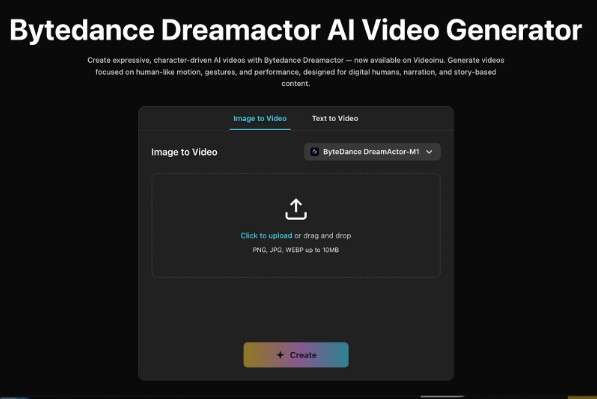
If you want to try Bytedance Dreamactor without paying first, Videoinu is an easy place to begin. New users get free credits, and Dreamactor is a strong fit for character-driven videos, avatar-style clips, and short scenes built around motion and expression.
You do not need a complicated setup to get started. The easiest way is to begin with one clear subject, one simple action, and a short idea you can test quickly.
What Is Dreamactor Best For?
Dreamactor works best when the focus is on a person, avatar, or animated character. It is a good choice for videos where movement, expression, and screen presence matter more than big cinematic world-building.
That can mean a talking avatar, a digital host, a short reaction clip, or a simple story scene with one character at the center. If your goal is to make the subject feel alive on screen, Dreamactor is a practical model to start with.
How to Use Bytedance Dreamactor on Videoinu for Free
Step 1: Start with a simple video idea
Before you generate anything, decide what the clip should do.
A simple idea usually works best at the start. You might want a presenter talking to the camera, a character reacting with a clear emotion, a short intro for social media, or a digital host explaining one point. You could also test a small story moment instead of trying to build a full sequence right away.
The main thing is to keep the first idea tight. Dreamactor is easier to control when the clip stays focused on one subject and one action.
Step 2: Choose text to video or image to video
On Videoinu, you can start with either a text prompt or an image.
Use text to video if you want to test an idea quickly and see how the model handles it.
Useimage to video if you already have a character image and want the result to stay closer to that look.
For many people, image to video is the easier starting point. If you already have a portrait, character design, or visual reference, it gives the model a clearer base to work from and often makes the final motion feel more grounded.
Step 3: Write a prompt that focuses on motion
A common mistake is trying to describe everything at once. That usually makes the result feel less clear.
Instead, focus your prompt on a few basics: who is on screen, what they are doing, how they move, what mood the clip should have, and what kind of shot you want.
For example:
A young woman facing the camera, calm expression, gentle hand movement, slight head motion, clean background, natural speaking style, medium shot.
This kind of prompt is easier for the model to follow. It gives enough direction without overloading the scene.
If you are using image to video, let the image handle most of the visual detail. Use the prompt mainly to guide motion, mood, and framing.
Step 4: Generate a short test clip first
Do not try to make the final version on the first run. Start with a short clip and see how the movement feels.
Look at a few basics. Does the face stay stable? Do the gestures feel natural? Does the motion match the mood? Is the shot clean and easy to read?
If something feels off, change one part of the prompt and try again. Small edits usually work better than rewriting everything. This is the fastest way to learn how Dreamactor responds.
Step 5: Build from one good clip
Once you get one good result, the next step becomes much easier on Videoinu. Instead of treating the output like a one-time test, you can build the next scene with the same logic and turn a short clip into a repeatable workflow.
That can work well for creator intros, avatar-based videos, short character scenes, digital presenter content, or a faceless workflow built around an animated host. The key is not to do too much at once. Get one clip working, then expand from there.
Tips for Better Dreamactor Results
Use one main action
Do not ask the character to do too many things in one clip. One clear action is easier to control than several actions at once.
Keep the shot simple
A close-up or medium shot often works better than a wide, crowded scene. Simpler framing usually leads to cleaner character motion.
Use a clear reference image
If you choose image to video, start with a clean image where the face and pose are easy to read. That usually gives you more stable results.
Be specific about mood
Instead of saying only “happy” or “sad,” use a more exact feeling like “calm,” “slightly nervous,” or “quietly confident.” Small choices like this can improve the final motion.
Build longer videos scene by scene
If you want a bigger project, do not force everything into one generation. Make one short scene at a time. This usually works better when you want character flow and scene structure to stay clear across multiple scenes.
When to Use Dreamactor Instead of Other Models
Dreamactor makes the most sense when the subject is the main event. If you want expressive movement, a talking character, or a digital host, it is often a better fit than a model built mainly for big visual set pieces.
It is especially useful when your content depends on a single on-screen character, a presenter-style shot, an avatar-based format, or a short story scene driven by performance. If the clip needs expression more than spectacle, Dreamactor is usually the easier path.
Final Thoughts
Bytedance Dreamactor is easiest to use when the idea is clear and the first test is small. Start with one short clip, guide the motion with a clean prompt, and see what works. Once that first scene feels right, it is much easier to build the next one on Videoinu.
FAQs
Can I use Bytedance Dreamactor for free on Videoinu?
Yes. New users can start with free credits and test Dreamactor inside Videoinu.
Should I use text to video or image to video first?
If you already have a character image, image to video is usually the easier starting point. If not, text to video is a simple way to test ideas quickly.
What is Dreamactor best for?
Dreamactor works best for character-driven clips, talking avatars, digital hosts, and short scenes where movement and expression matter.
How do I get better Dreamactor results?
Keep the prompt simple, focus on one action, use a clear mood, and test short clips before trying longer scenes.
Can I make longer videos with Dreamactor?
Yes, but it usually works better to build them one scene at a time instead of trying to generate everything in one go.